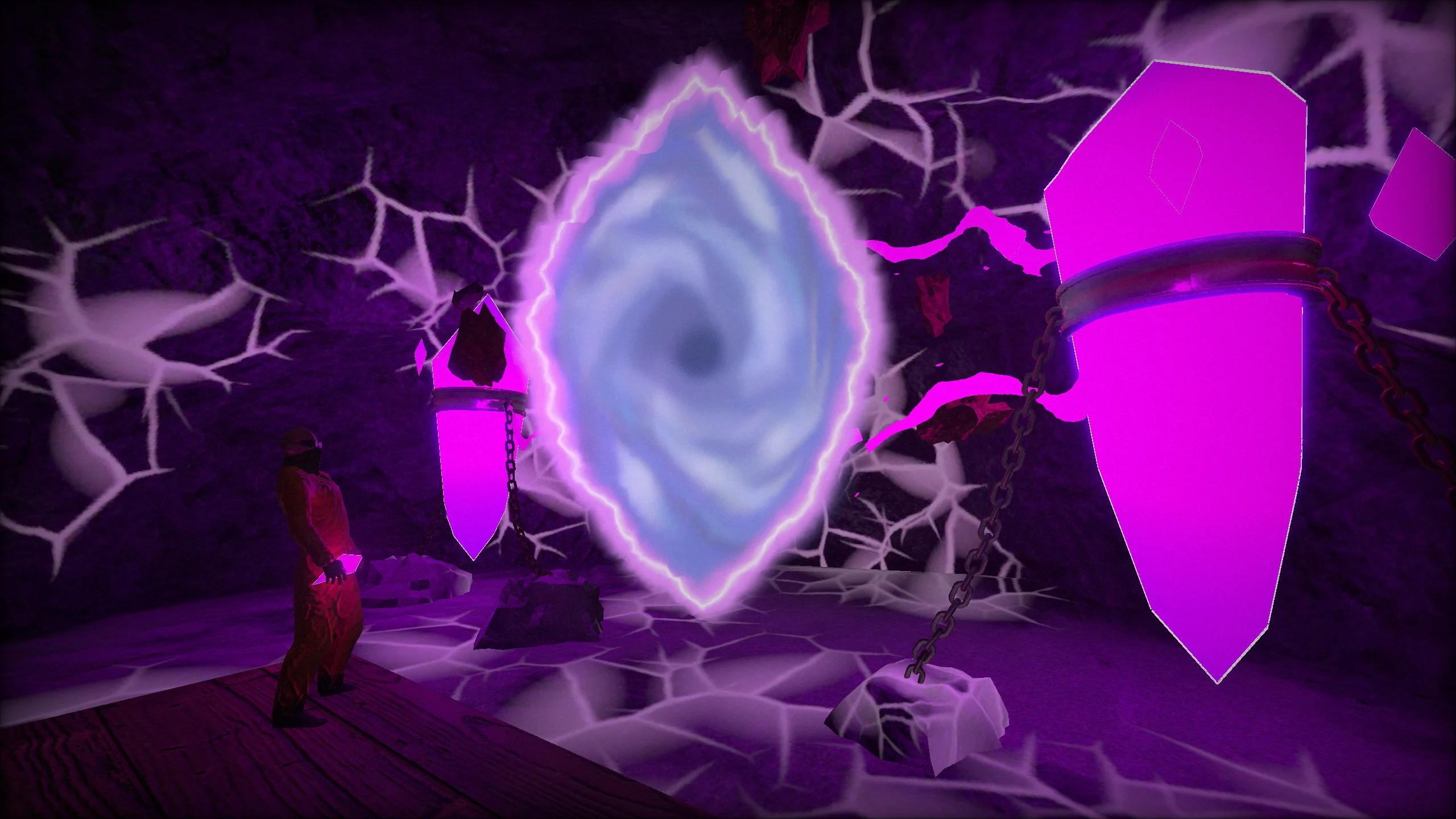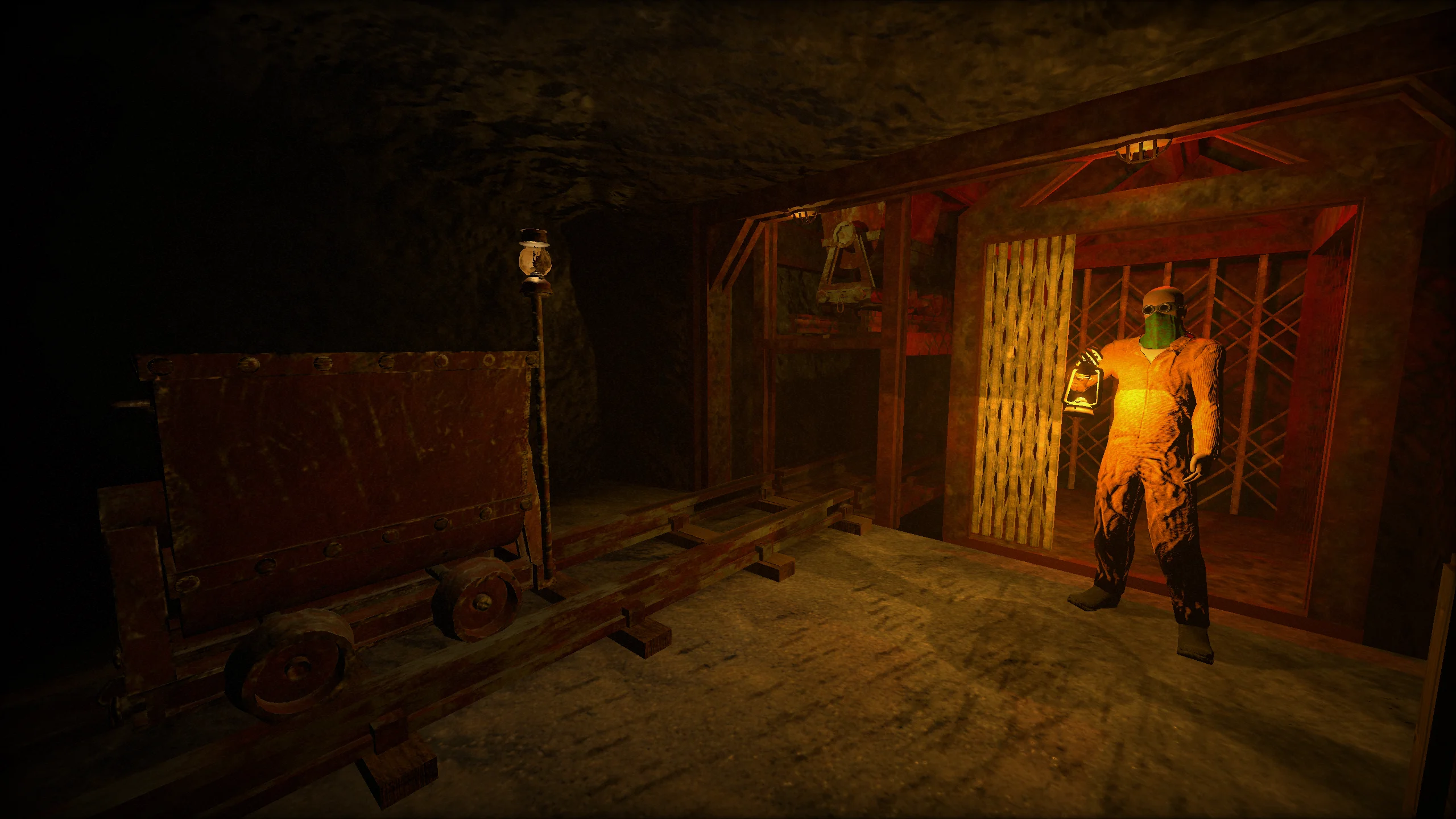
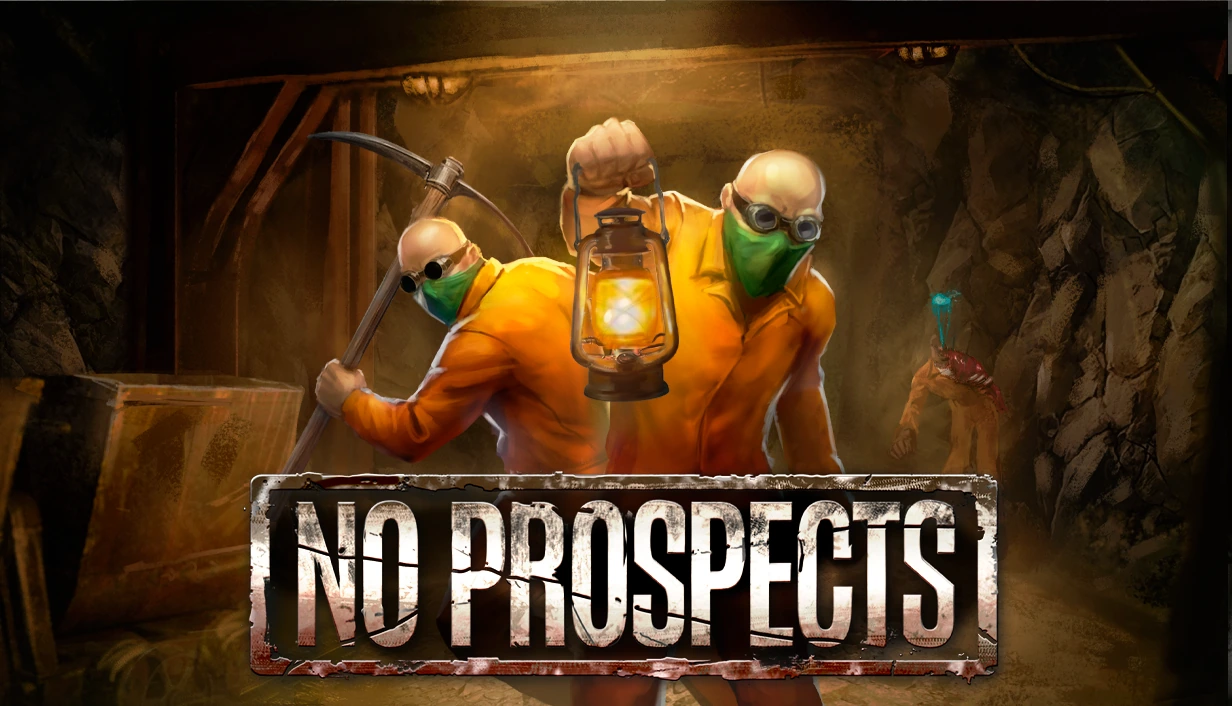
No Prospects - Dark mine tunnel

No Prospects

Build as a team to reach the depths of the cave. Can you make it out alive?

Coming 2026
No Prospects - underground scene

Survive the Horrors of the Abyss

Uncover the forsaken remnants of a past world as you survive deeper and deeper expeditions.

No Prospects - mine depths

Always Go Prepared

Deep beneath the earth lies a network of abandoned mines, rich with valuable ore but haunted by unspeakable horrors. You and your crew have been hired to extract as much as possible, but the mine doesn't give up its treasures easily.

FAQ & Support

Stuck on something? The most common setup issues are below. If you don't see your problem, jump into our Discord — that's where we handle support.

Voice chat in No Prospects routes through Steam, so the input device has to be set in three places:

  1. Windows / OS sound settings — set the mic you want to use as the default input device. On Windows: Settings → System → Sound → Input. On macOS: System Settings → Sound → Input.
  2. Steam — open the Steam desktop app → Settings → Voice → set the same mic as your Voice Input Device. Hit "Start Voice Test" there to confirm Steam can hear you.
  3. In-game — the Settings page in No Prospects mirrors whichever device the previous two are pointing at. If audio still doesn't work, restart the game after fixing the OS / Steam settings.

Using a USB audio interface (Focusrite, Behringer, etc.)? Plug your microphone into channel 1 on the interface — Steam Voice only reads the first input channel. Mics plugged into channel 2+ will be silent even if the levels look right in your DAW.

Using a headset? Make sure both Windows and Steam are pointed at the headset's mic specifically, not the built-in laptop mic, which Windows often re-selects after a reboot.

  1. Pair the controller to your computer. For Xbox / DualSense / 8BitDo / Switch Pro: hold the pairing button and add it under Bluetooth in your OS settings, or plug it in over USB.
  2. Confirm Steam sees it. Open the Steam desktop app → Settings → Controller. Your controller should appear in the "Detected Controllers" list and respond to button presses on the test panel. If it doesn't, Steam can't see it and the game won't either.
  3. Launch No Prospects through Steam. Steam Input applies the game's default controller bindings automatically — no extra config needed. On Steam Deck this is the default and works out of the box.

Controller is paired but unresponsive in-game? In Steam: Settings → Controller, make sure the relevant controller-input switch (Xbox / PlayStation / Switch / Generic) is enabled. Some users disable these globally and forget.

Join the No Prospects Discord and post in the support channel. Include your OS, whether you're on Steam Deck, and a short description of what's failing — screenshots help a lot.

Join the Discord